How to Ship a Mac mini or Mac Studio Safely
Small and heavy is its own hazard. Protect the corners and ports, size the box to the weight not the footprint, and double-box so a dense machine can't dent itself.
Encore Editorial · Nov 14, 2026 · 5 min read
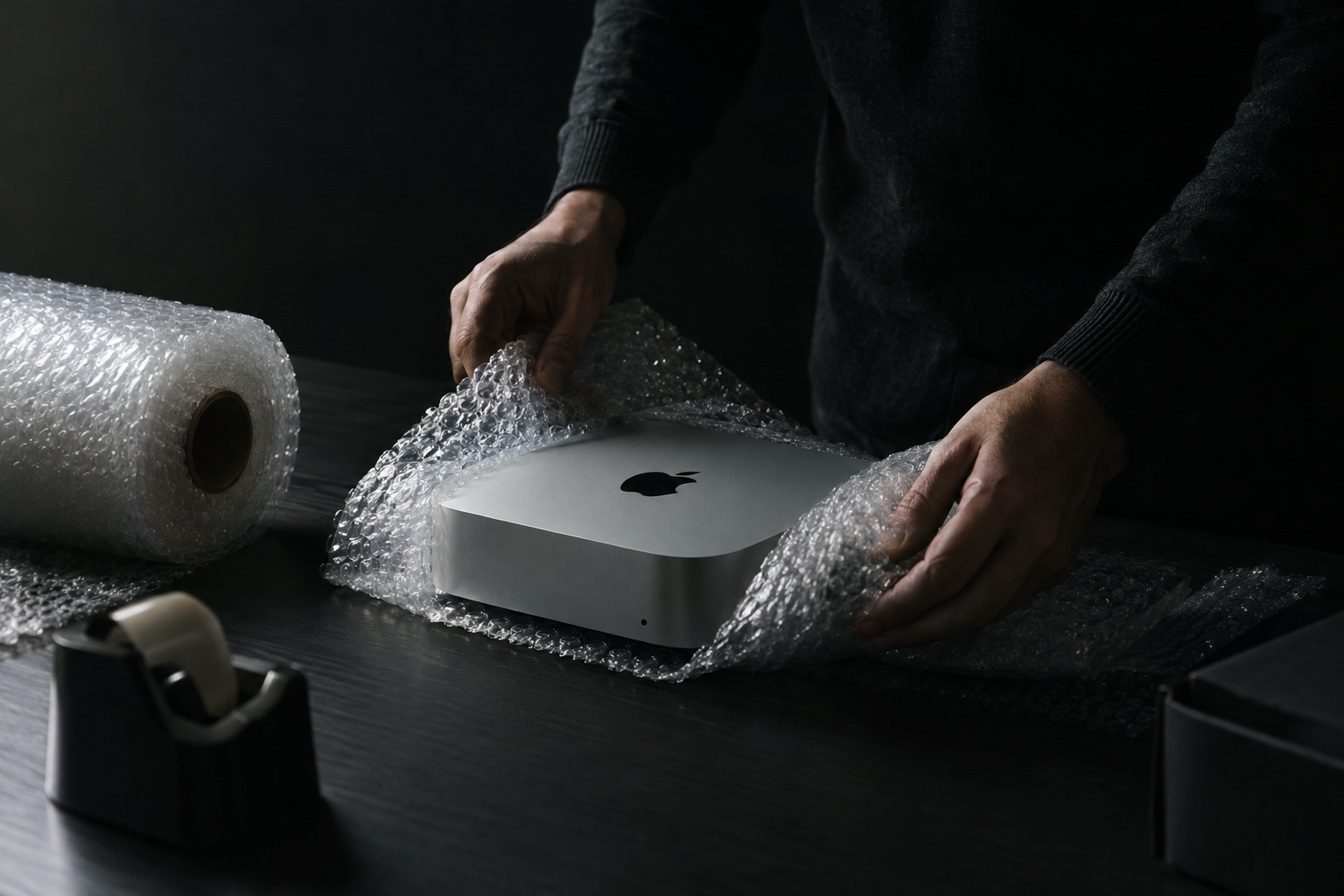
A Mac mini or Mac Studio looks like the easiest Mac to ship — no screen to crack, no lid to flex, just a compact aluminum block. That impression is exactly what gets them damaged. These are small but surprisingly dense machines, and density is the trap: a heavy little box builds real momentum in a fall, and all of it lands on whatever corner hits first. Learning how to ship a Mac mini or Mac Studio safely is about treating a small, weighty object with the same seriousness you'd give a fragile one — protecting the corners and ports, choosing a box sized to its heft rather than its footprint, and never mistaking "small" for "tough."
Here is how to pack these desktops so their weight works for you instead of against the machine.
Why small and heavy is its own problem
A MacBook's weight is spread across a wide chassis; a Mac Studio concentrates more mass into something the size of a thick sandwich. When a dense object is dropped, the energy of the fall funnels into the point of contact — usually a corner. Without padding, that corner dents, the port cluster behind it can bend, and the aluminum unibody can deform enough to matter. The fix is cushioning that keeps the machine from ever touching a box wall, plus a box strong enough that its weight doesn't blow through the bottom.
Wrap it, protect the corners and ports
Start by wrapping the whole unit in several layers of bubble wrap. The desktop-shipping walkthrough at AVADirect advises wrapping a computer in "as many layers of bubble wrap as you can" and filling any gaps so components "can't shift." Pay special attention to two areas:
- The corners. Double the bubble wrap over all eight corners. These are the first points to hit in a drop and the most likely to dent.
- The rear ports. The power, Thunderbolt, HDMI, and Ethernet jacks are recessed but vulnerable — a hard knock to the back can bend a port or crack the internal connector. A folded pad of bubble wrap across the port face protects them. Don't leave anything plugged in; a cable sticking out becomes a lever.
If you still have the original Mac mini or Mac Studio packaging, use it as the inner layer — Apple's inserts fit the machine precisely — then place that inside a second box, as below.
Right-size the box for weight, not footprint
This is where people go wrong. Because the machine is small, the instinct is to grab a small box — but a box barely larger than a Mac Studio leaves no room for the cushioning its weight demands. The reliable method is to double-box. FedEx's guidance on shipping computers calls for an outer box "at least 6″ larger in length, width, and height" than the inner box, with "at least 2″ of peanuts on all six sides" and the bottom lined with "3″ of packing material." The machine should sit "snugly with filler so that the computer or laptop doesn't shift," without the packing pressing hard against it.
The electronics guide at Easyship gives the same shape of advice — leave at least two inches between the device and the walls, "always double-box," and make the fit snug enough that "the tighter and more secure the fit, the less" the machine "can bounce around in transit." AVADirect's double-box method is a good template: line the inner box, seat the padded machine, fill the sides and top, seal it, then set that box into a larger one padded on all sides until "the smaller box feels secure."
Size the box to the weight. A dense little computer needs a box that looks too big for it: a snug inner box inside a sturdy outer box, with at least two inches of cushioning on every side and extra over the corners. The empty-looking space is doing the work.
Use a sturdy box and a shake test
A Mac Studio in particular is heavy enough to punch through a thin or reused carton. Choose a sturdy corrugated box — double-walled if you have it — and reinforce the bottom seam with wide tape so the weight can't split it open. When it's sealed, give the whole parcel a firm shake. If you feel or hear the inner box shifting, open it and add filler until it's silent. Movement is what turns a routine drop into damage.
Label it, track it, insure it
Mark the box "Fragile" and "This Side Up," though keep FedEx's caution in mind: those markings "don't guarantee the box stays upright in transit," so your padding is the real protection. Keep the outside plain rather than advertising a computer inside. Then ship it tracked and insured for the full replacement value — these machines, especially a loaded Mac Studio, are worth well beyond default carrier liability, so declare the value properly. A padded envelope or a flimsy single box is simply not packaging for a machine this valuable; if that idea is new, our explainer on why a bubble mailer is not packaging makes the case.
When the label comes to you
All of this assumes you're buying boxes and arranging shipping yourself. If you're selling, the logistics can be handled for you: sell to a buyer that provides shipping and you receive a prepaid, insured label sized for the machine, so your only task is the packing. You can get an instant offer on a Mac mini — or a Mac Studio — in about thirty seconds, label included, with payment once it arrives. Pack the little machine like the dense, valuable object it is, and its weight stays a strength instead of a liability.
Get an instant offer on your Mac
A real number in about 30 seconds — working or not. Free prepaid shipping, no seller fees, paid the day it arrives.*
Get my offerSources
More from Encore
 Guides & How-To
How to Prove Your Mac Isn't Stolen to a Cautious Buyer
Nervous buyers want proof a used Mac is really yours to sell. Here's the paperwork and the two-minute checks that put their mind at ease.
Nov 18, 2026 · 4 min read
 Guides & How-To
Forgot Your Mac's Password Before Selling? Here's What to Do
Locked out of a Mac you want to sell? Here are the recovery routes in order — and the Find My step you still must not skip, even after a full erase.
Nov 17, 2026 · 4 min read
 Guides & How-To
How to Check Your Mac's Parts and Service History
Apple silicon Macs now keep a record of repairs. Here's how to read the Parts & Service screen, what the labels mean, and why it matters at resale.
Nov 16, 2026 · 4 min read