How to Check Your Mac's Parts and Service History
Apple silicon Macs now keep a record of repairs. Here's how to read the Parts & Service screen, what the labels mean, and why it matters at resale.
Encore Editorial · Nov 16, 2026 · 4 min read
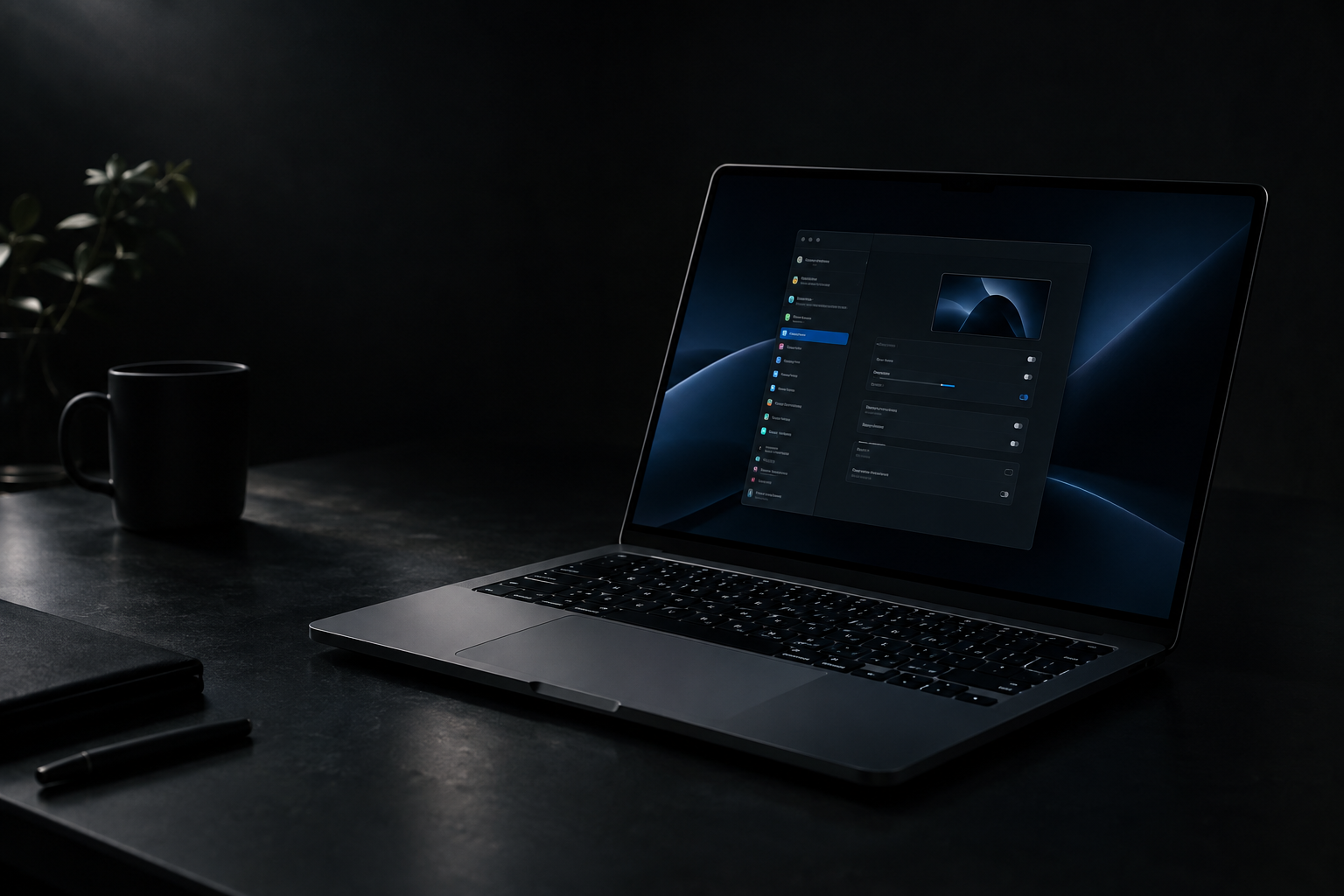
For years, a Mac's repair past was effectively invisible. A machine could have a swapped display, a replaced logic board, or a third-party battery inside it, and short of opening it up, nobody — not the owner, not a buyer — would know. That changed quietly with recent Macs: there's now a built-in Parts and Service History screen that records certain repairs and tells you whether each one used a genuine Apple part. Knowing how to check your Mac's parts and service history is useful when you're buying, and close to essential when you're selling, because it's the first thing a careful buyer will look at.
What the feature is, and which Macs have it
Parts and Service History is a log, maintained on the device itself, of components that have been serviced. According to Apple's support page on Mac parts and service history, it requires a Mac with Apple silicon running macOS Tahoe 26 or later. If your Mac is Intel-based or on an older macOS, you won't see this screen at all — its absence doesn't mean the machine was never repaired, just that it predates the feature.
The list of tracked parts varies by model, but Apple names the logic board, the Touch ID board, the lid angle sensor, and the display. Desktops like the Mac mini, iMac, Mac Studio, and Mac Pro show fewer entries, since they have fewer of those components. One quirk worth knowing: if a part has been serviced more than once, only the most recent service shows.
How to open the screen
The path is short. Choose Apple menu > System Settings, click General in the sidebar, then About on the right, and finally Parts & Service. Here's the catch that confuses people: as Apple notes, that option "appears only when your Mac detects that it has been repaired." If you don't see Parts & Service at all, that's generally a good sign — the machine has no recorded service history to show.
Reading the labels
The labels are the whole point, and they're more specific than a simple genuine-or-not flag. Apple's documentation defines them:
- Genuine — the repair used genuine Apple parts and processes.
- Used — the part was already used or installed in another Mac. Genuine, but not new.
- Unknown — the part may be non-genuine, may not be working as expected, may not have been verified and linked to your Mac after repair, or may have been modified. Apple states plainly that "an unknown part might affect the trade-in value of your Mac."
- Unverified — specific to a previously replaced logic board; Apple warns that using an unverified logic board "may affect certain features, such as Apple Pay."
You may also see "Finish Repair," which means a repair was started but not completed with Apple's Repair Assistant. Until it's finished, Apple cautions that parts which aren't calibrated "may not work as well" — Touch ID, for instance, "won't unlock the device until calibration is complete."
Why the wording matters: "Unknown" is not an accusation of anything shady. It can simply mean a genuine part wasn't digitally linked to your Mac during the repair. But a buyer can't tell the difference from the screen alone — which is exactly why you'll want to be ready to explain any flag you see.
Why these particular parts are tracked
Apple ties the tracking to parts that are individually calibrated. Both the Touch ID repair and lid angle sensor repair pages explain that genuine components are calibrated at manufacture, with the calibration data stored on Apple's servers and retrieved to complete the repair. Skip that step — as a third-party shop without access to it would — and the part may land in your history as unknown, and may not perform as designed. A faulty lid angle sensor, Apple notes, can stop the Mac from sleeping when you close the lid; a Touch ID board issue can stop fingerprint authentication working at all.
What it means for selling
None of this makes a repaired Mac unsellable. A machine with a genuine, properly linked replacement display is in great shape, and plenty of buyers don't mind a documented repair. The risk is in the surprise: a buyer who opens Parts & Service and sees "Unknown" with no explanation will assume the worst and walk, or lowball. The way to protect your sale is to check the screen yourself before you list, understand what it says, and be upfront. If a part reads as unknown because of a legitimate out-of-warranty repair, say so.
This is distinct from — but related to — the broader issue of components being locked to a specific Mac during repair. For that mechanism and why it can quietly reduce a machine's value, see our explainer on parts pairing and why third-party repairs can cost you.
If the history is complicated, let the number reflect it
Honesty about repairs is always the right call, but it can feel like it works against you in a private sale, where one flagged part scares off a buyer entirely. A dedicated buyer treats service history as data, not a dealbreaker. When you get an instant offer from Encore, a documented repair or an unknown part is simply one input into the price — not a reason to decline the machine — so a Mac with history still has a straightforward, honest path to a sale.
Get an instant offer on your Mac
A real number in about 30 seconds — working or not. Free prepaid shipping, no seller fees, paid the day it arrives.*
Get my offerSources
More from Encore
 Guides & How-To
How to Prove Your Mac Isn't Stolen to a Cautious Buyer
Nervous buyers want proof a used Mac is really yours to sell. Here's the paperwork and the two-minute checks that put their mind at ease.
Nov 18, 2026 · 4 min read
 Guides & How-To
Forgot Your Mac's Password Before Selling? Here's What to Do
Locked out of a Mac you want to sell? Here are the recovery routes in order — and the Find My step you still must not skip, even after a full erase.
Nov 17, 2026 · 4 min read
 Guides & How-To
How to Move Your Data Off a Mac Before You Sell It
Get every file onto your new machine or a backup before you wipe the old one. A calm, correct walkthrough of Migration Assistant, Time Machine, and iCloud.
Nov 15, 2026 · 4 min read