How to Check Your Mac's Storage Health Before Selling
Ten minutes with built-in tools tells you whether your Mac's drive is healthy or failing — and an honest, confident answer is what protects your price.
Encore Editorial · Nov 11, 2026 · 5 min read
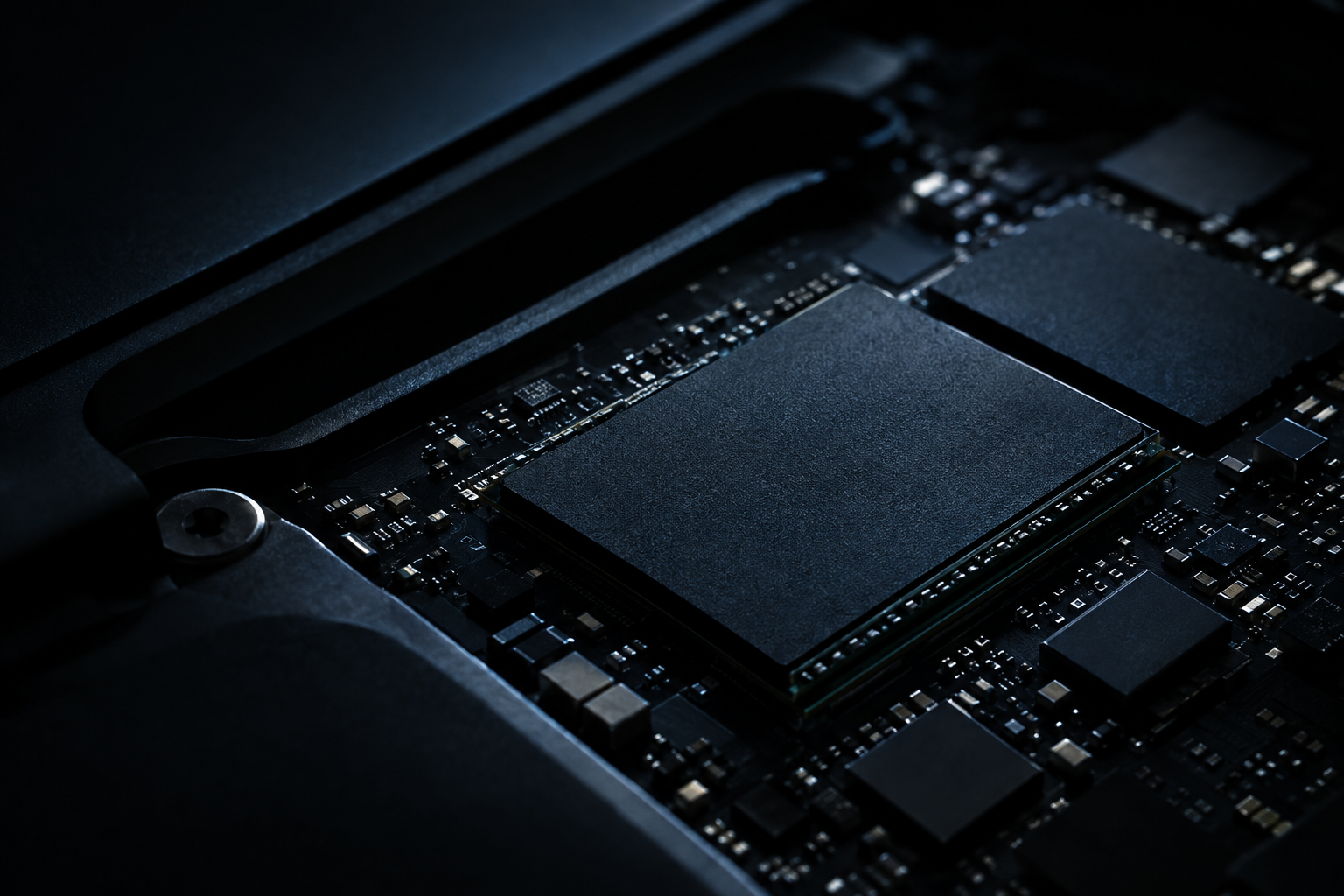
Before you sell a Mac, it is worth spending ten minutes on the one component a buyer can't see but will absolutely care about: the drive. Learning how to check your Mac's storage health before selling does two things at once — it tells you whether the machine is as sound as you think, and it lets you describe it honestly, which is what firms up the price. A Mac with plenty of free space and a drive reporting a clean bill of health is an easy sell. A failing or nearly worn-out drive quietly tanks the value, and it is far better that you find out than the buyer does.
There are really two questions here, and they are different. One is how full is the drive. The other is how worn is the drive. Check both.
Step 1: See how full the drive is
Start with the easy, built-in view. On macOS Ventura 13 or later, open System Settings > General > Storage; on earlier versions, use About This Mac > Storage. Apple's support documentation on freeing up storage space on a Mac explains that this view breaks usage down into categories — Applications, Documents, Messages, and the catch-all "System Data (or Other)" — and updates automatically as you clear things out.
You are not just satisfying curiosity. A drive stuffed to the brim looks bad to a buyer and can make a healthy machine feel sluggish. Clearing it out before sale helps, but remember Apple's caveat: moving files to the Trash doesn't reclaim the space until you actually "empty the Trash." If you plan to hand the Mac over, you will be erasing it anyway — but knowing the true footprint now tells you how the machine has been used.
Step 2: Check the drive's health status
Capacity is cosmetic; health is structural. Every modern Mac drive reports a basic SMART status (Self-Monitoring, Analysis and Reporting Technology) that you can read without any extra software. Hold Option, click the Apple menu, and choose System Information, then open Storage under Hardware and select the drive. As the walkthrough at MakeTechEasier describes it, the SMART Status at the bottom of the panel will read either "Verified," meaning "the drive has no reported problems," or "Failing," meaning "the drive has an error that will soon become 'Fatal.'"
If SMART status reads "Failing," stop and note it. That is not a maybe. It means the drive is on its way out, and selling the machine as fully working would be a misrepresentation. Disclose it — a buyer who purchases Macs in any condition will still make an offer, where a private buyer expecting a flawless unit would feel cheated.
Step 3: Go deeper on wear (optional but telling)
"Verified" is a pass, but it is a coarse one. It only means no error threshold has been crossed yet — it does not tell you how much life the flash has left. For that you need the wear figures, and here the tools get more technical.
The free, command-line route is smartmontools. MakeTechEasier's guide walks through installing it with Homebrew (brew install smartmontools) and running smartctl -a against your drive's identifier to dump the full SMART report, including wear indicators. A fuller treatment from the Mac-focused blog Eclectic Light explains how to estimate remaining life from the total data a drive has written against its rated endurance, and reviews the main tools — noting that the paid app DriveDx is capable but Intel-only, and that Apple's own internal SSDs expose "extremely limited info," so wear figures on recent Apple Silicon Macs can be harder to read than on other drives.
Don't let the detail intimidate you. For most sellers, the practical takeaway is simple: if the SMART status is "Verified" and the machine has seen normal personal use, the drive is almost certainly fine. The deeper tools matter most for older machines, heavy workstation use, or any Mac that has felt unreliable.
What "healthy" looks like, and why it matters to value
A storage-healthy Mac, in buyer terms, means: SMART status Verified, no unusual noises or beachballs, the drive mounts cleanly, and there is room to breathe rather than a drive wedged at capacity. On Apple Silicon Macs the storage is soldered to the logic board — as we cover in why modern Macs can't be upgraded — so a bad drive is effectively a bad machine, not a quick swap. That is exactly why buyers weight it so heavily, and why a clean drive protects your price. Capacity matters to the number too; our look at how storage capacity changes your Mac's value breaks that down.
Turn the check into a clean offer
Once you know where the drive stands, you can sell with confidence instead of crossed fingers. Encore prices the actual condition of the machine, so an honest account of the drive — healthy or failing — gets you a firm offer rather than a renegotiation later. You can get an instant offer in about thirty seconds, and because it buys Macs in any condition, even a unit with a tired or failing drive has a straightforward path to cash. Check the storage first; it is the difference between guessing and knowing.
Get an instant offer on your Mac
A real number in about 30 seconds — working or not. Free prepaid shipping, no seller fees, paid the day it arrives.*
Get my offerSources
More from Encore
 Guides & How-To
How to Prove Your Mac Isn't Stolen to a Cautious Buyer
Nervous buyers want proof a used Mac is really yours to sell. Here's the paperwork and the two-minute checks that put their mind at ease.
Nov 18, 2026 · 4 min read
 Guides & How-To
Forgot Your Mac's Password Before Selling? Here's What to Do
Locked out of a Mac you want to sell? Here are the recovery routes in order — and the Find My step you still must not skip, even after a full erase.
Nov 17, 2026 · 4 min read
 Guides & How-To
How to Check Your Mac's Parts and Service History
Apple silicon Macs now keep a record of repairs. Here's how to read the Parts & Service screen, what the labels mean, and why it matters at resale.
Nov 16, 2026 · 4 min read