Factory Resetting a Mac: Apple Silicon vs. Intel
The factory-reset process splits by chip: Apple silicon and T2 Macs get one-click reset; older Intel Macs erase through Recovery. Here's both.
Encore Editorial · Sep 6, 2026 · 7 min read
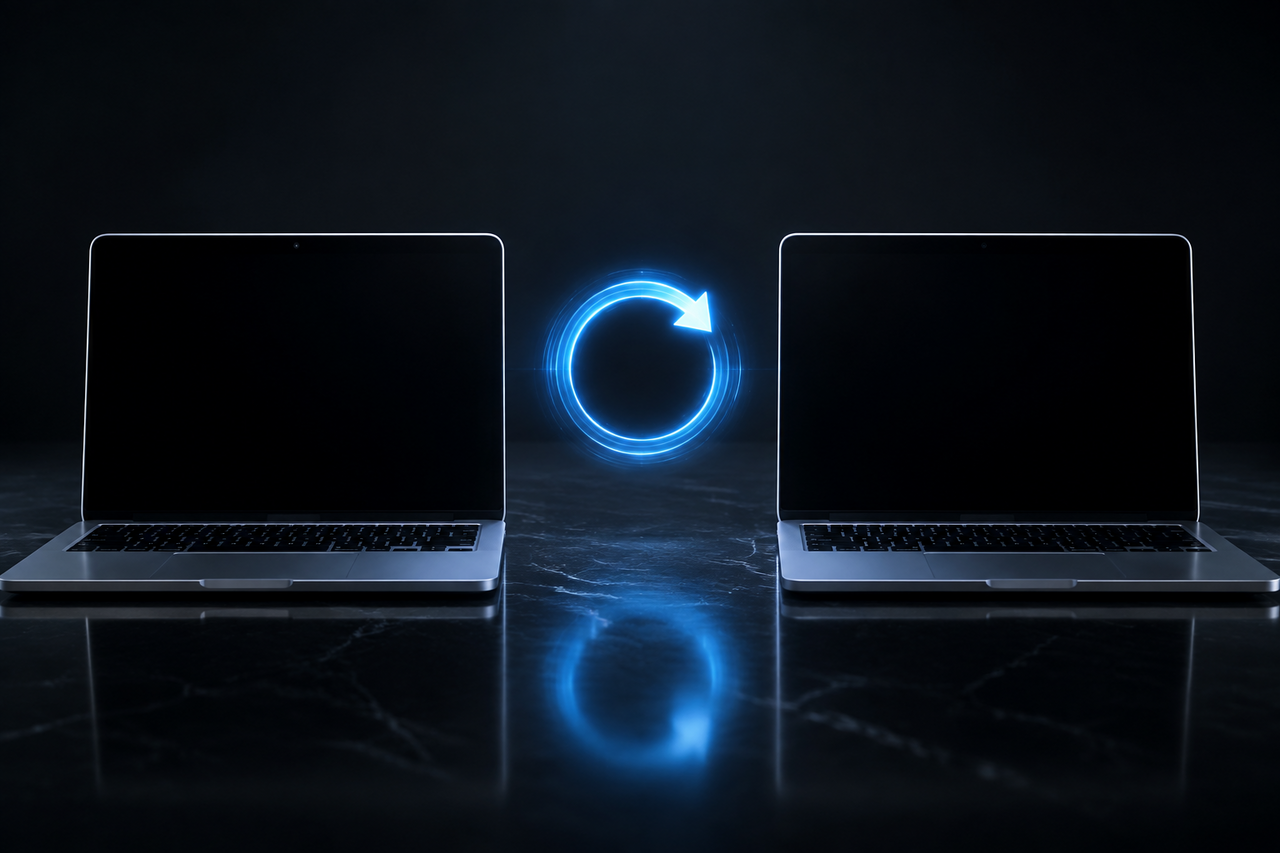
Search "how to factory reset a Mac" and you'll find two sets of instructions that seem to contradict each other. They don't — they're for two different machines. The right way to factory reset a Mac depends on the chip inside it: Apple silicon (and late-model Intel Macs with the T2 Security Chip) use a fast, one-click reset, while older Intel Macs erase the hard drive through macOS Recovery and reinstall the system. Follow the wrong set of steps for your Mac and you'll either miss a menu that isn't there or take a longer road than you needed to.
This guide lays out both processes side by side, so you can find your Mac in the right column and get it done.
First, figure out which Mac you have
Click the Apple menu and choose About This Mac. If you see a line that names an Apple M-series chip (M1, M2, M3, and up), you have Apple silicon. If it lists an Intel processor, you have an Intel Mac — and the next question is whether it has Apple's T2 Security Chip, which most Intel Macs from roughly 2018 to 2020 do.
Why the T2 matters: it gives an Intel Mac the same secure, one-click reset that Apple silicon uses. So the real dividing line isn't "Apple vs. Intel" so much as "does this Mac support Erase All Content and Settings or not."
The dividing line is a feature, not a brand. Any Mac with Apple silicon or a T2 chip running macOS Monterey 12 or later gets the one-click reset. Everything older erases through Recovery. Check About This Mac and you'll know which path is yours.
Path A: Apple silicon and T2 Macs (the one-click way)
On these machines, Apple built a reset that mirrors the iPhone. According to Apple's factory-reset guide, Erase All Content and Settings is available in macOS Monterey 12 or later on any Mac with Apple silicon or the T2 chip. It "quickly and securely erase[s] all settings, data, and apps, while maintaining the operating system currently installed" — so there's no reinstall to sit through.
To use it in macOS Ventura or later:
- Open System Settings from the Apple menu.
- Click General in the sidebar, scroll down, and click Transfer or Reset.
- Click Erase All Content and Settings.
- Enter your administrator password, optionally make a last Time Machine backup, and sign out of your Apple Account when prompted.
- Confirm, and the Mac erases and restarts to the "Hello" setup screen.
(In macOS Monterey, the option lives under System Preferences, chosen from the System Preferences menu in the menu bar.) Because this flow signs you out of your Apple Account, it also turns off Find My and clears Activation Lock automatically — the lock that would otherwise keep the next owner from using the machine. Ten minutes, mostly hands-off, and you're done.
Path B: older Intel Macs (the Recovery way)
If Erase All Content and Settings isn't in your menus, your Intel Mac predates the T2 chip, and you'll do the erase manually. The order matters here: sign out of iCloud first (System Settings or System Preferences > your name / Apple ID > Sign Out), because once the disk is wiped you can't turn off Find My from the machine. Then:
- Start up in Recovery. Per Apple's Recovery guide, press the power button and immediately hold Command-R until the Apple logo or a spinning globe appears, then release.
- Erase the disk. Choose Disk Utility from the utilities window and click Continue. Select your startup volume (typically "Macintosh HD") and click Erase. Apple's Disk Utility instructions cover picking the format — APFS on modern macOS — and confirming.
- Reinstall macOS. Quit Disk Utility, select Reinstall macOS from the utilities window, and follow the prompts. Apple's reinstall guide notes this installs a fresh copy onto the now-empty drive.
The contrast with Path A is real: instead of one command, you're booting into a separate environment, erasing by hand, and waiting through a full operating-system reinstall that can take a while depending on your connection.
Both paths end the same way
Whichever route you took, the Mac restarts into the Setup Assistant asking you to choose a country or region. If you're selling or giving it away, don't continue — press Command-Q to shut down instead, leaving it in a clean, out-of-box state for the next person. On Intel Macs, resetting the NVRAM at this point is a reasonable finishing touch that Apple mentions in its pre-sale steps.
A quick reference
| Apple silicon / T2 | Older Intel (no T2) | |
|---|---|---|
| Method | Erase All Content and Settings | Erase in Recovery + reinstall |
| Reinstall macOS? | No — keeps the OS | Yes |
| Enter Recovery? | No | Yes (Command-R at startup) |
| Sign out of iCloud | Handled in the flow | Do it manually, first |
| Rough time | ~10 minutes | 30+ minutes |
The bottom line
Factory resetting a Mac isn't hard on either chip — it's just two genuinely different procedures that share an ending. Confirm your chip in About This Mac, take the matching path, and stop at the "Hello" screen. The newer the Mac, the easier this is, which is one small reason recent Apple silicon machines are so painless to pass along.
Reset and unlinked, a Mac is ready for its next owner however you sell it. If you'd rather skip the listing entirely, you can get an instant offer in about 30 seconds — and reset it first regardless, so nothing personal travels with the hardware.
Get an instant offer on your Mac
A real number in about 30 seconds — working or not. Free prepaid shipping, no seller fees, paid the day it arrives.*
Get my offerSources
More from Encore
 Guides & How-To
What Actually Gets Erased When You Wipe a Mac
Wiping a modern Mac destroys an encryption key, not files one by one. Here's what really disappears and what survives the erase.
Sep 26, 2026 · 6 min read
 Guides & How-To
Real vs Counterfeit Mac Chargers: How to Tell and Why It Matters
Most fake Mac chargers fail basic safety tests. How to spot a genuine adapter — and why keeping it protects your resale value.
Sep 25, 2026 · 6 min read
 Guides & How-To
Why 2021-and-Newer Macs Have Randomized Serials — and Why It Matters
Apple stopped encoding the model, storage, and build date into serial numbers in 2021. Here's how to verify a used Mac now.
Sep 25, 2026 · 6 min read