How to Safely Clean a Mac Before You Sell It
A careful ten-minute cleaning can nudge your Mac into a higher cosmetic grade. Done wrong, it can leave marks that cost you. Here's the safe way.
Encore Editorial · Nov 20, 2026 · 4 min read
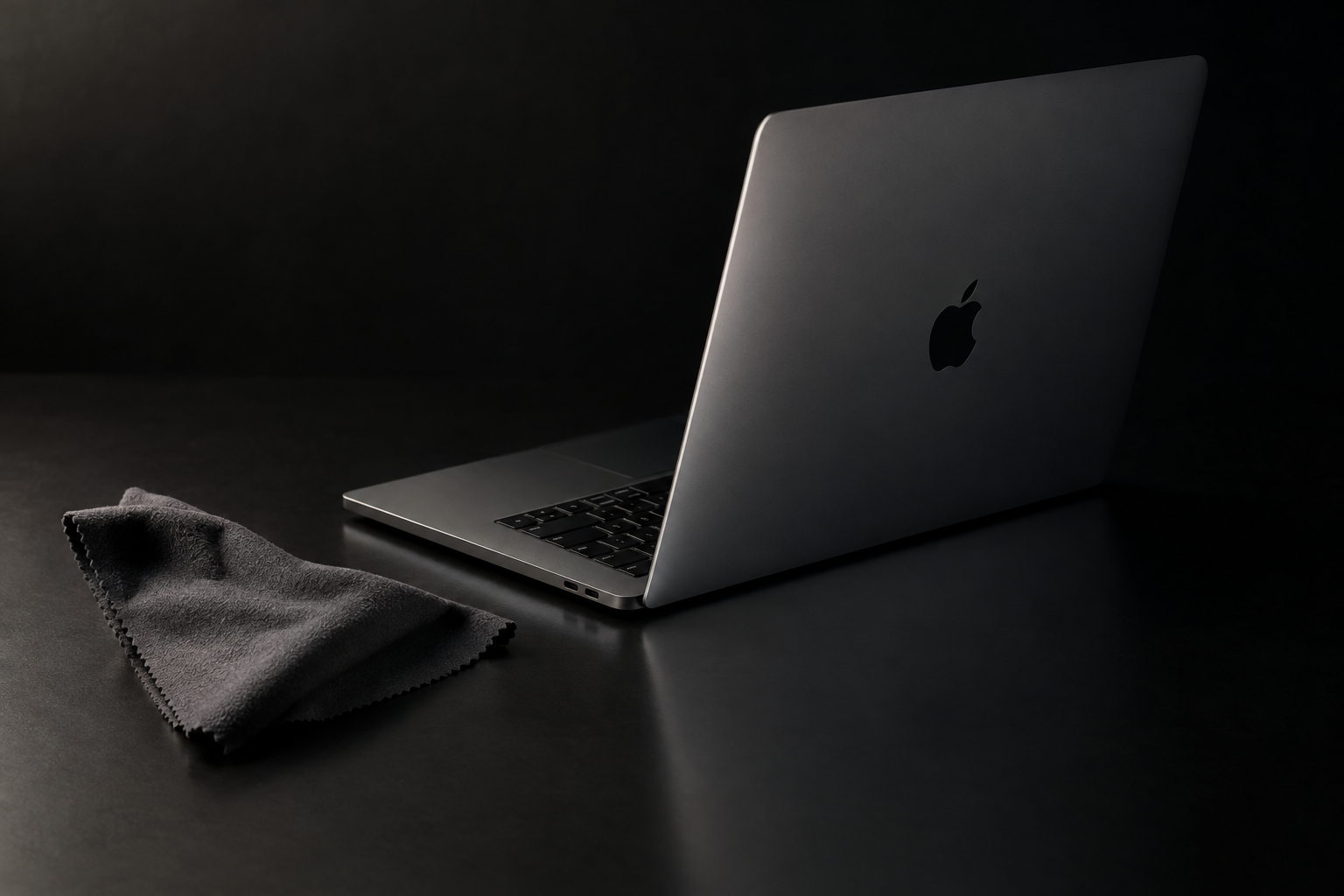
Cleaning a Mac before you sell it is the cheapest upgrade you can give it. A machine that arrives free of fingerprints, dust, and crumbs photographs better, demos better, and — because cosmetic condition is graded on what a reviewer can actually see — often lands a notch higher than an identical but grubby one. The catch is that the wrong cloth or the wrong spray can leave permanent marks that drag the grade back down. This guide covers how to clean a Mac before you sell it without doing any harm.
The whole job takes about ten minutes and almost no money. What matters is using the right materials in the right order, and knowing which products to keep far away from the machine.
Start by powering all the way down
Before anything touches the surface, shut the Mac down completely and unplug it. As 9to5Mac's cleaning walkthrough puts it, you should turn off the Mac and unplug the power cable and any other accessories first. A powered machine is both a shock risk around any moisture and harder to inspect, since a lit screen hides exactly the smudges you are trying to remove. Working on a dark, cold screen lets you see every mark in raking light.
The cloth and the liquid
The only tool the screen really wants is a soft, lint-free microfiber cloth. For most grime, that cloth lightly dampened with water is enough — and the single most important rule is to wet the cloth, not the computer. The same 9to5Mac guidance is blunt about it: apply the water to the cloth rather than directly to your MacBook. Distilled water is a touch better than tap, because it will not leave mineral spots as it dries.
For fingerprints and oils that water alone won't lift, a light solution of isopropyl alcohol cut roughly half-and-half with distilled water, applied to the cloth, does the job. Apple's own guidance, as iPhone Life notes, allows water first with 70% isopropyl alcohol or Clorox wipes as alternatives for nonporous surfaces — but the same piece warns plainly: do not use too much water or isopropyl alcohol. Wipe the screen in gentle passes, let it dry, and resist the urge to scrub.
The short version: power off, use a dry-ish microfiber cloth with distilled water (or a light isopropyl mix for oils), never spray liquid onto the machine, keep moisture out of every opening, and leave ports and speaker grilles to a brush or a professional. Skip anything abrasive or bleach-based entirely.
What never to use
This is the part that costs sellers money. Apple's cleaning guidance, quoted by 9to5Mac, says to never use aerosol sprays, solvents, or abrasives. That rules out household glass cleaners, ammonia-based sprays, paper towels, and any rough cloth. The display and lid carry coatings that these products can haze or strip, and a clouded screen is a defect a grader will mark — the opposite of what you were going for. iPhone Life's advice is the same in spirit: do not use harsh or unknown chemicals on your MacBook screen, keyboard, or trackpad.
Keyboard, trackpad, and the aluminum
The keyboard and trackpad take the same gentle approach: a microfiber cloth, barely dampened, wiped lightly across the keys. Keep the cloth on the dry side so nothing drips between the keys, and the iPhone Life guide's reminder applies to the whole machine — take extra care to not get any liquid in any openings. For the aluminum chassis, the same damp microfiber lifts grime without scratching. Don't chase every micro-scratch in the metal; honest, light cleaning is the goal, not resurfacing.
Dust, vents, and ports
Dust is the quiet grade-killer, especially on a machine that's lived on a desk for years. For a keyboard, a short burst of compressed air clears crumbs and lint. Ports and speaker grilles are more delicate — iPhone Life specifically warns to avoid using compressed air as it can push the dirt deeper into the device there, and says the safest route for a stubborn port is to have it professionally cleaned. If your Mac's fans have grown loud over the years, that's often dust too; iFixit's fan troubleshooting wiki recommends you arm yourself with compressed air and clear the intake area — though that's an internal job better left alone right before a sale unless you're comfortable opening the case.
Why the effort is worth it
Cosmetic grade is one of the few parts of a Mac's value you can still move the day before you sell. A clean, dust-free machine looks cared-for, and a cared-for machine reads as lower-risk to anyone assessing it. If you want to understand exactly what a reviewer looks at, our explainer on how cosmetic grading actually works breaks down the like-new, good, and fair tiers.
Once the Mac looks its best, the simplest way to turn that condition into cash is to skip the haggling entirely. You can get an instant online offer in about thirty seconds, with a prepaid, insured label to send it in. A careful cleaning won't change the model or the chip inside — but it can be the difference between one grade and the next, and that's a return few ten-minute jobs can match.
Get an instant offer on your Mac
A real number in about 30 seconds — working or not. Free prepaid shipping, no seller fees, paid the day it arrives.*
Get my offerSources
More from Encore
 Guides & How-To
How to Check If Your Mac Is Still Under AppleCare
Find out in two minutes whether your Mac still has AppleCare or warranty coverage, how to read the result, and whether it transfers to a buyer.
Nov 19, 2026 · 4 min read
 Guides & How-To
How to Prove Your Mac Isn't Stolen to a Cautious Buyer
Nervous buyers want proof a used Mac is really yours to sell. Here's the paperwork and the two-minute checks that put their mind at ease.
Nov 18, 2026 · 4 min read
 Guides & How-To
Forgot Your Mac's Password Before Selling? Here's What to Do
Locked out of a Mac you want to sell? Here are the recovery routes in order — and the Find My step you still must not skip, even after a full erase.
Nov 17, 2026 · 4 min read